
Help
Adding a vehicle
Adding a car starts with its VIN. Scan the barcode with your phone camera or type the 17 characters, confirm the decoded details, and you're logging in seconds.
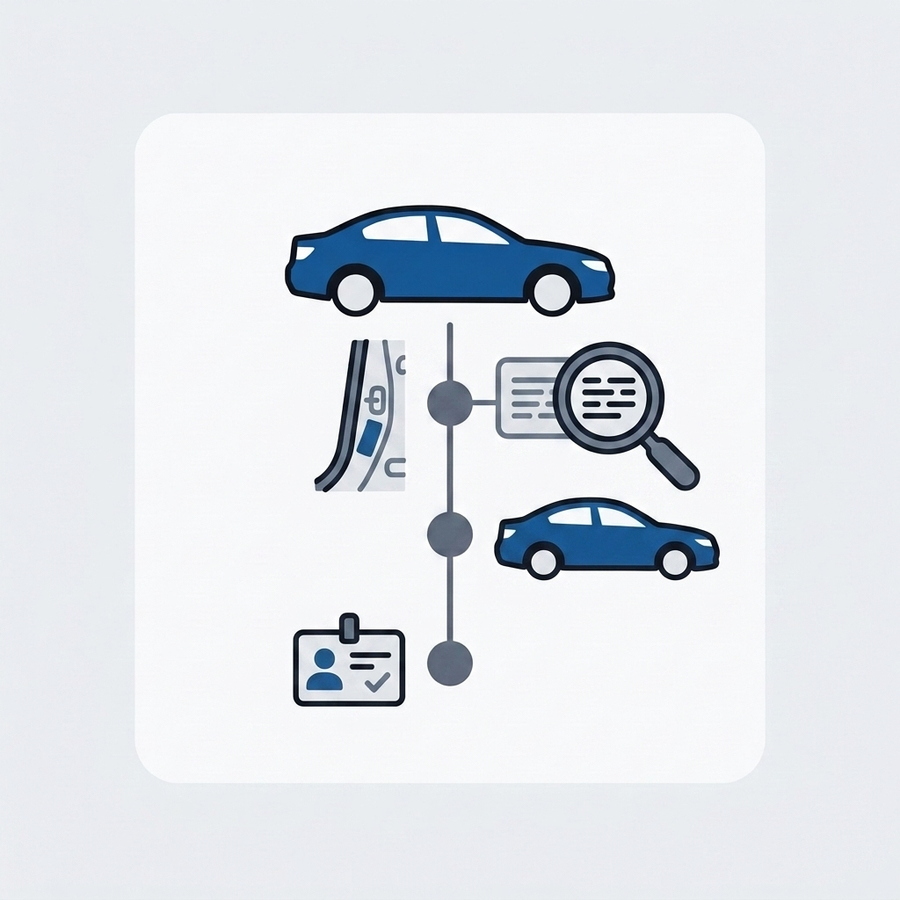
Start a new vehicle
In the app, tap Add vehicle from your garage. On the web, sign in at myglovebox.ai/app to manage the garage that syncs with your phone.
Scan or enter the VIN
Point the camera at the VIN barcode — it's at the base of the windshield on the driver's side, or in the driver's door jamb. Prefer to type it? Enter the 17 characters, or skip and fill the details in by hand.
Confirm the decoded details
MyGlovebox decodes the VIN against the NHTSA database and shows a card with the year, make, model, trim, and engine. Every field is editable, so fix anything the decode missed before you continue.
Add mileage and a photo
Enter the current odometer reading (required — it drives your reminders), give the car a nickname if you like, and add a photo. Then MyGlovebox offers the most common reminders, pre-filled with sensible defaults.
Related questions
Start your car's receipt-verified history — free.
One vehicle, unlimited logs, reminders, and CSV export cost nothing. Add the receipts and carry that proof to resale.